
CRM

CRM

I lost the ‘import contacts’ argument!

From the very start, I did not want people importing their contacts into Candid CRM. My reasoning was that I wanted to follow a process:

  • Add contact to CRM, either manually or by scanning their business card.
  • Create and execute the first action that will lead to a one2one.
  • Keep creating and executing actions until your either get the one2one or you give up!
  • Have the one2one and go from there.

If you import 100 contacts, you can still do this, but you have to work through them methodically, and delay the first action as you cannot do several first action immediately.
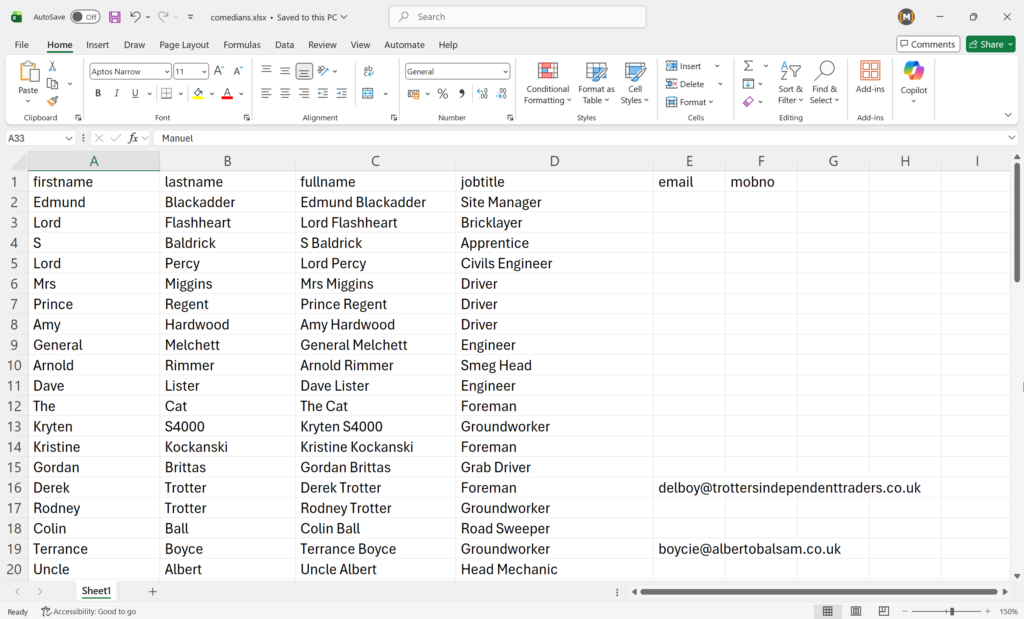
I still stand by this. However, Candid CRM is meant for first time CRM users. New businesses, people who are currently using a spreadsheet, Outlook or the contacts on their mobile.

These people are more likely to have 50 contacts than 1000, and typing in 50 names and details will take awhile. Using a CRM is to save you time, not to waste it.

So, the import facility is being added! The cravat is that you will be notified that it is a good idea to cleanse your contacts before importing them. As a rule, only import contacts that you are happy to set a next action.

CRM

Contact Types for your business

In sales, the following contact types are used:

  • New Lead
  • Contacted
  • Engaged
  • Qualified
  • Proposal Sent
  • Decision
  • Won
  • Lost

These are what I have used as defaults in Candid CRM. But it is unlikely that your business follows this process. So, today I have spent the day making sure that you can changes these types as well as add your own. I have also given you the ability to change the order.

There is one more contact type that I have added. This one you cannot delete and will always be the last one. That type is:

  • Archive

Archive, is the nicest word I could think of! This type of contact are for the people you never want to deal with. They are bad for your business. However, they need to be in your CRM so that you know not to deal with them. More importantly, everyone in your business knows not to deal with them.

You can list all your “Archived” contacts, but they will be ignored everywhere in the CRM, including dashboard and reports. Before you archive a contact, you should add a note or better still, update the comment for that contact. This will remind you and your team that they should not communicate with them.

CRM

Birthday, not Date of Birth

Candid CRM was designed to be easy to use, with no clutter. There was no plan for a date of birth field. Firstly, I could not see the point, secondly, I rarely know the year of birth, and thirdly, entering the day, month and year is time-consuming. However, the point of a CRM is to keep in touch with your contacts. What better way to keep in touch than to email, telephone or visit a contact to wish them a happy birthday!

So, today, I added a day and month for birthday. The day is a one or two digit number and the month is a dropdown. This makes entering birthday days quick and simple. The dashboard now shows contacts with birthdays in the next 7 days, this may change to 10 or 14 later on, or be a setting. Birthdays are listed after actions, actions are the most important thing in my mind for a CRM, but once those are complete, you should work your way through the contacts with birthdays. You never know where the conversation will lead, maybe to a new opportunity or sale.

Scroll to Top